Cette page existe aussi en français. Lire en français
Wall screens
Build a screen for the operations room or a department, and show it on a TV.
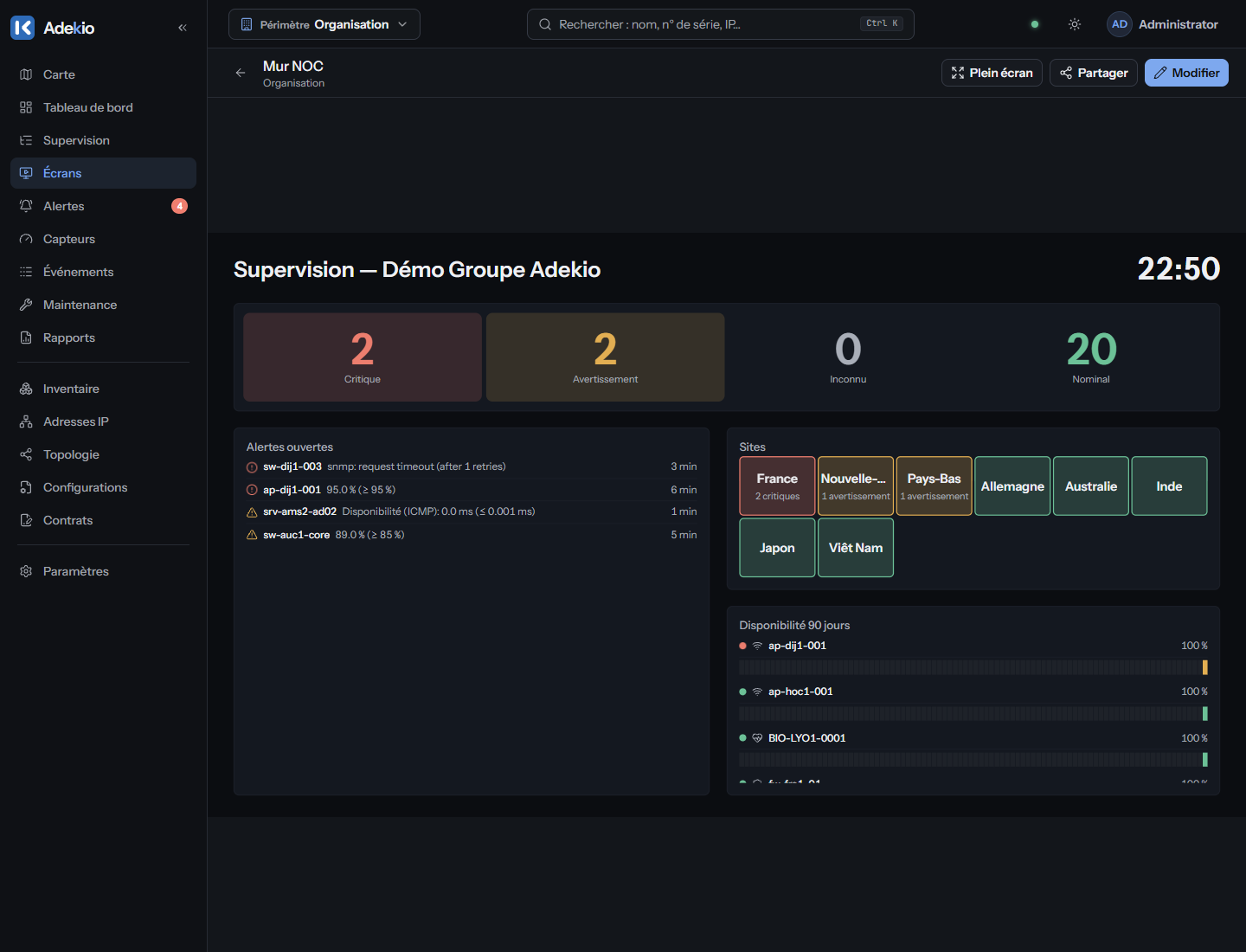
Create a screen
Menu Screens (Screens right in write mode, given to the Administrator role; it can be added to another role, for example for the operations centre manager) > New screen: name, entity (the screen only shows its items), size (Full HD, 4K, portrait…), theme.
The editor
- Palette on the left: click a widget or drag it onto the screen; move and resize it with the mouse (magnetic grid, Alt to place freely), arrows to adjust, Del to remove, Ctrl Z / Ctrl Y, Ctrl S to save.
- Properties on the right: the item or group (location, tag, class, entity), the measure, the period, the style; without a selection, the screen’s settings: colour or background image (floor plan, network diagram; 4 MB at most), refresh (30 s by default).
| Widgets |
|---|
| Status (dot, tile or icon) · value · gauge · chart · sparkline · port traffic · availability · item list · status counters · site grid · alerts · ranking · link · text · clock · image · service status |
Share
Share gives two addresses that show the screen alone, full screen:
- private address (
/screens/<n>/display): sign-in required, open to the accounts that see the screen’s entity; a wall screen’s session stays open while it displays, 7 days at most; - public link (
/k/<key>, optional): no account. Limit it to the screens’ networks (Allowed networks field, for example the TVs’ VLAN) and possibly to an expiry date; New link cuts the old one at once.
On a TV
On a Raspberry Pi connected to the TV, start Chromium in kiosk mode at boot:
chromium-browser --kiosk --noerrdialogs --disable-infobars --incognito "https://adekio.example.local:8080/k/<key>"
The screen updates by itself, hides the pointer, prevents sleep when the browser allows it, reloads after an Adekio upgrade and shows a dated banner if the server stops answering (the last values stay visible).
Network of stores or branches
One location per store under a parent location ("South stores"), one monitoring rule per device role, one collector per store, then a screen with the Site grid widget on the parent location: one tile per store, coloured by the worst status of its items, stores down first. Hundreds of stores fit on a TV.
Was this page helpful?
Thank you for your feedback. Tell us what is missing